
MindTap Instructor Help
Courses using Standard MindTap have an eBook icon in the toolbar.
 in the toolbar.
Editing is not available for all activities.
At the top of the activities list, turn on Edit
 .
.To expand chapter and activity folders, click
 .
.Click
 Edit next to an activity.
At the bottom of the activity settings editor, click Edit Activity Options.
At the bottom of the activity, click Add Question › From Question Bank.
The question bank for your course opens.
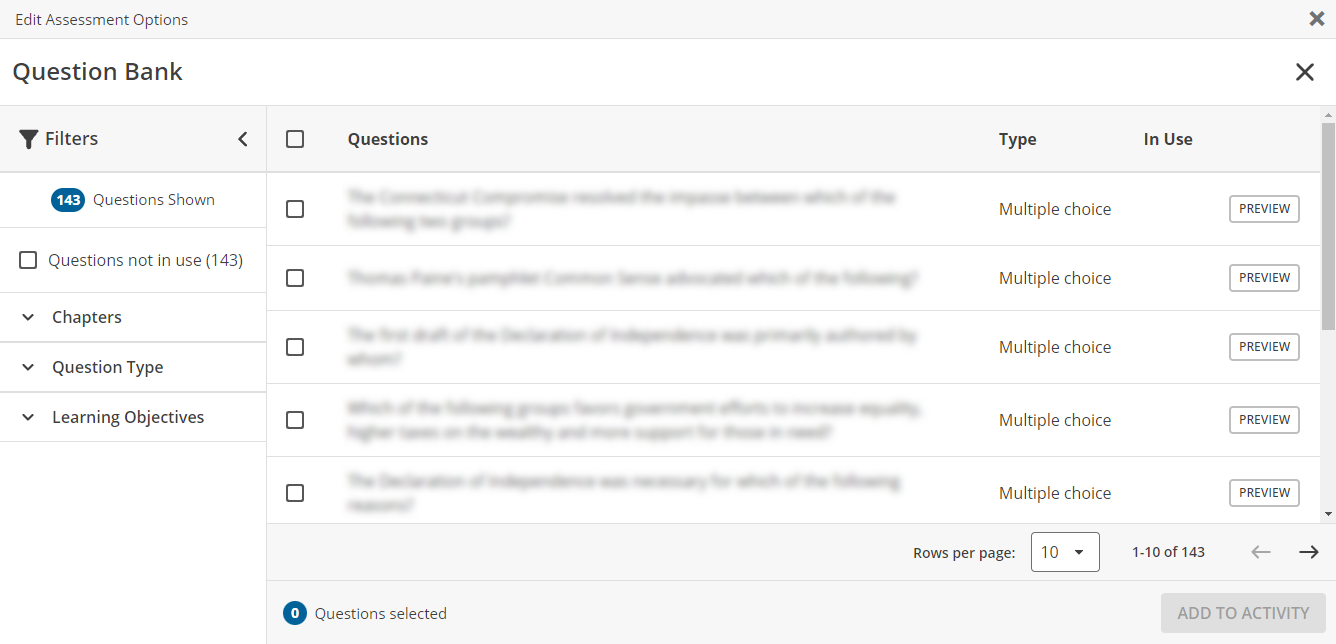
Filter the question bank to find questions you want.
You can filter the question bank by:
- Questions not in use
- Chapters
- Question Type
- Learning Objectives
To preview a question, click Preview.
Select questions to add.
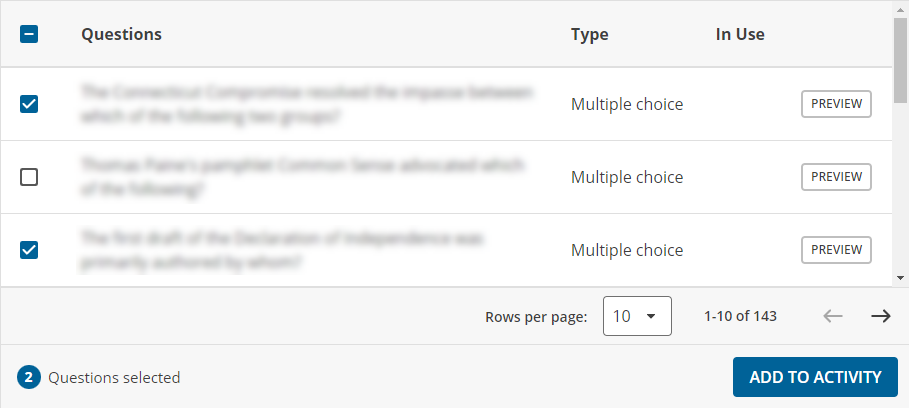
Click Add to Activity.
The question bank closes and the activity editor shows the activity with the added questions.
Click Save and Close to save your activity changes and close the activity editor.
Open the activity editor.
To do this:
Do this:
Edit an activity on the learning path
Click
 › Edit activity title and content.
Edit an activity from the Activity Bank
- Click + Activity › Activity › Add from Activity Bank.
- Click an activity.
- Click Edit.
Create a new activity
- Click + Activity › Activity › Create New.
- Click either Create Activity or Create Activity with Question Pools.
Click
 Browse Question Bank.
Filter the question bank to find questions you want.
Browse questions by:
- Question Type
- Question Source
- Categorization
- Difficulty
- Chapter/Subchapter
- Certification
To search question content, enter your search criteria in Find by content and click
.To preview a question, click
 .
.To view the question answer, click Check Answer.
To view more questions, click
 Previous or Next
  at the top or bottom of the question list.
Select questions and click Add Question(s).
Click
Back to return to the activity editor.Click Save.